
Template: Add an Inbox Item
This example gives you a QuickAdd choice that creates a new inbox note in one step. QuickAdd asks you for a short name, then makes a note whose file name is the current date and time followed by what you typed - so every capture lands in your inbox as its own dated note, ready to process later.
Before you start
Section titled “Before you start”- A template note you want each inbox item to start from. This example uses
bins/templates/Inbox Template.md. The template can be as simple as an empty file or contain any format placeholders you like.
-
In QuickAdd settings, click Add Choice, select Template, and give it a name (for example,
Inbox Item). -
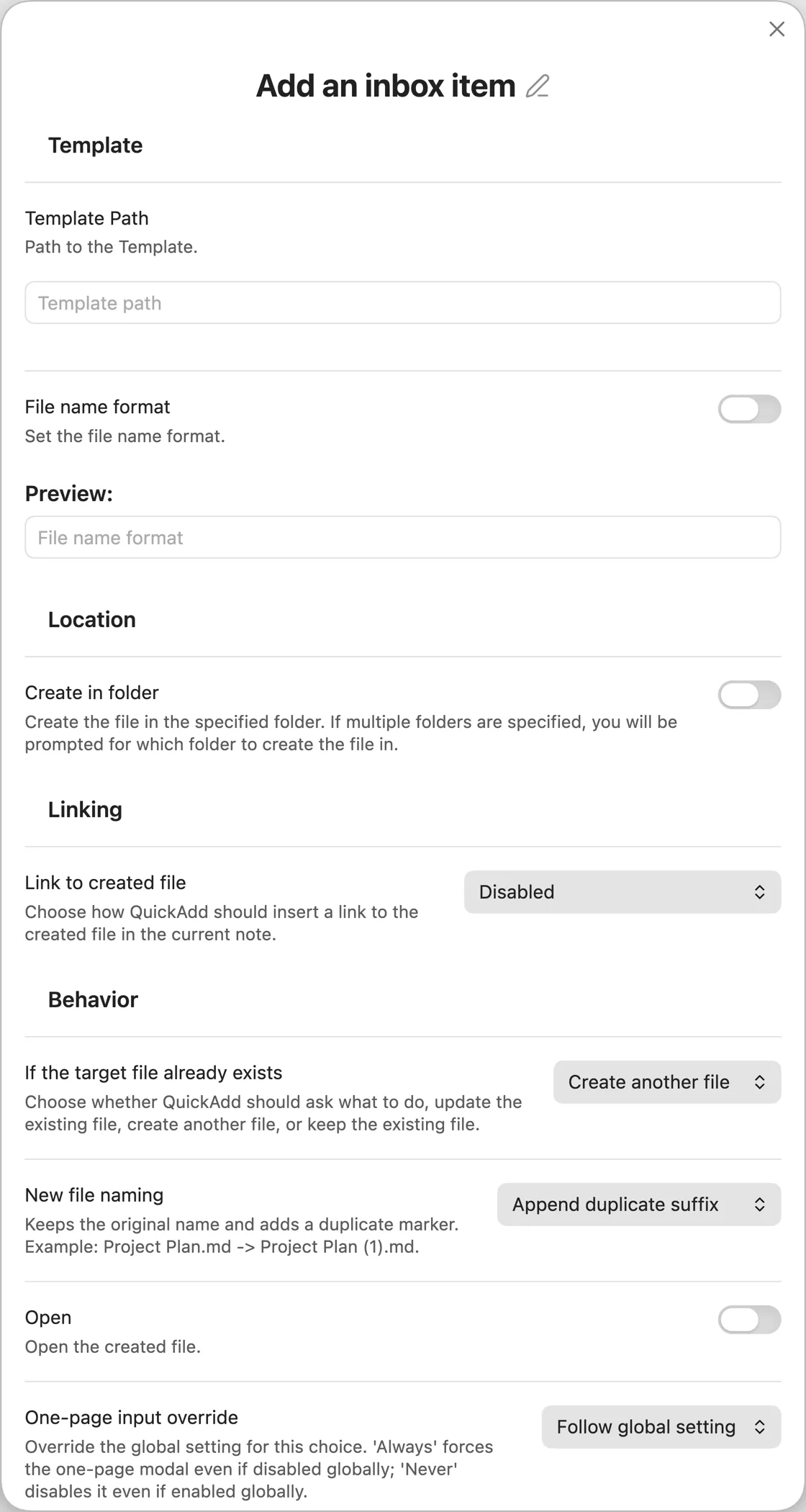
Click the configure button (the gear icon) on the choice to open the Template choice settings. For a full tour of these settings, see the Template choice docs.
-
Set Template Path to your inbox template:
bins/templates/Inbox Template.md -
Enable File Name Format and set it to:
{{DATE:YYYY-MM-DD-HH-mm-ss}} {{NAME}}{{DATE:YYYY-MM-DD-HH-mm-ss}}becomes the current date and time down to the second, and{{NAME}}becomes whatever you type when the choice runs. Together they keep every inbox note uniquely named and in date order. -
Choose the folder new notes should go into and set the remaining options to your liking.
What you get
Section titled “What you get”Run the choice and type a short name, such as call dentist. QuickAdd creates a note named like 2026-07-08-14-30-05 call dentist.md from your inbox template.